 Website · Analytics
How to Track Website Traffic (Free, Step-by-Step)
In This Article
- Why tracking your traffic matters
- The free tools you actually need
- Step 1: Create a Google Analytics account
- Step 2: Create a GA4 property
- Step 3: Set up a web data stream
- Step 4: Install the tracking tag
- Step 5: Verify it's working in Realtime
- Step 6: Add Google Search Console
- How to actually read the data
- The 5 numbers that matter for a local business
- What to ignore
- Track which posts and ads drive traffic with UTM tags
- Turning data into growth decisions
- FAQ
You can't grow what you can't see. Right now, people are landing on your website, looking around, and either reaching for the phone or clicking away — and if you're not tracking it, you have no idea which. You're guessing. And guessing is expensive.
The good news: tracking your website traffic is completely free and takes about 15 minutes to set up. This guide walks you through it in plain English — no data science degree, no marketing jargon. We'll set up Google Analytics 4, confirm it works, and then — the part most guides skip — show you how to actually read the numbers and turn them into decisions that grow your business.
Why tracking your traffic matters
Think about your physical storefront for a second. You'd notice how many people walk in the door. You'd notice which displays they stop at. You'd notice if half of them turned around and left before they reached the counter. You'd use that to make changes.
Your website is your busiest storefront — open 24/7, and for most local businesses it's where customers decide whether to call you or call your competitor. But without tracking, it's a storefront with the lights off. You have no idea how many walked in or why they left.
Traffic tracking turns the lights on. It tells you three things that change how you spend every marketing dollar:
- Where your visitors come from — Google search, Facebook, a bookmark, an ad, another website. This tells you which marketing is actually working.
- What they do on your site — which pages they land on, how long they stay, whether they take action.
- Where you lose them — the pages where people leave instead of calling, so you know exactly what to fix first.
Without this, every decision you make about your website and your marketing is a coin flip. With it, you're making moves based on what's real.
The free tools you actually need
You don't need to pay for anything. Three free tools cover everything a local business needs, and you can ignore every paid "analytics platform" trying to sell you a subscription.
1. Google Analytics 4 (GA4) — your main tool. This is the one to set up first and the one this guide focuses on. It tracks how many people visit, where they come from, what pages they see, how long they stay, what device they use, and what actions they take. It's free with no traffic limits you'll ever hit.
2. Google Search Console — your search data. Where GA4 shows you what people do on your site, Search Console shows you what people typed into Google to find you in the first place. It's the only place you can see your actual search keywords. Also free, and it links directly into GA4.
3. Microsoft Clarity — your heatmaps (optional but excellent). Clarity is a free tool that records anonymous session replays and builds heatmaps showing exactly where people click, how far they scroll, and where they get stuck. Where GA4 gives you the numbers, Clarity shows you the why. It's a 30-second install and worth adding once GA4 is running.
Set up GA4 first. It does 80% of the job. Let's do it now.

Create a Google Analytics account
Go to analytics.google.com and sign in. Use a Google account you actually own and will keep — ideally a business Gmail, not a personal one or an employee's. This account owns your data, so don't use one you might lose access to.
Click "Start measuring." Enter an Account Name — just use your business name. You can leave the data-sharing checkboxes at their defaults and continue.
Create a GA4 property
Next you'll create a Property. A property is the container that holds all the data for one website. Name it your business name, then set your reporting time zone and currency to your own — this matters so your daily numbers line up with your actual business day.
Google will ask a few optional questions about your business size and goals. You can answer them or skip through — they don't affect your tracking.
Make sure you're creating a GA4 property. The old version, Universal Analytics (IDs starting with "UA-"), was shut down in 2023 and no longer collects data. Every new property today is GA4, with an ID that starts with "G-". If you see "UA-" anywhere, you're on outdated instructions.
Set up a web data stream
Now you'll tell GA4 where your data is coming from. Choose "Web" as the platform, enter your full website URL (including https://), and give the stream a name.
GA4 will generate your Measurement ID — it looks like G-XXXXXXXXXX. Copy it and keep it handy. This is the unique code that connects your website to your analytics.
Leave "Enhanced measurement" switched on. With one toggle, GA4 automatically tracks scroll depth, outbound link clicks, site searches, and file downloads — no extra setup. It's the easiest free win in this whole process.
Install the tracking tag
This is the step that actually starts collecting data. You have three ways to do it — pick the one that matches how your site is built.
Method A — Paste the code (works on any site). Copy this snippet into the <head> section of every page, replacing G-XXXXXXXXXX with your real Measurement ID:
<script async src="https://www.googletagmanager.com/gtag/js?id=G-XXXXXXXXXX"></script>
<script>
  window.dataLayer = window.dataLayer || [];
  function gtag(){dataLayer.push(arguments);}
  gtag('js', new Date());
  gtag('config', 'G-XXXXXXXXXX');
</script>
Method B — Use your platform's built-in field (the easiest). Most website builders just want your Measurement ID:
- WordPress: Install the free "Site Kit by Google" plugin — it installs GA4 and connects Search Console for you.
- Wix: Settings → Marketing & SEO → Google Analytics → paste your Measurement ID.
- Squarespace: Settings → Developer Tools → Google Analytics, or paste the snippet under Code Injection → Header.
- Webflow: Project Settings → Custom Code → paste the snippet in the Head section.
Method C — Use Google Tag Manager (best if you'll track a lot of events). If you already use GTM, add a "Google Tag" with your Measurement ID instead of pasting code directly. This keeps all your tracking in one place and makes adding conversion tracking later much easier.
Turning data into growth decisions
Tracking traffic isn't the goal. Making better decisions is. Here's how the numbers turn into moves that grow your business:
- If Organic Search is your biggest channel and it's growing — keep feeding it. Your SEO is working, so publish more helpful pages and keep your Google Business Profile sharp.
- If a channel sends lots of traffic but few conversions — the problem usually isn't the traffic, it's the page they land on. Fix the page before you spend more to send people to it.
- If most of your visitors are on mobile but your conversions are low — your phone experience is leaking customers. Tighten it up first.
- If a UTM-tagged campaign converts well — do more of exactly that. You now have proof, not a hunch.
- If a paid channel costs more than it returns — you can see it in black and white and stop the bleed.
That's the whole point. Once the lights are on, you stop guessing and start steering. You spend on what works, fix what's broken, and let the data — not your gut on a slow week — decide where the next dollar goes.
Set up GA4 today. Give it a couple weeks of data. Then check it once a week and watch how much sharper your decisions get.
Frequently Asked Questions
The Realtime report shows visitors within minutes of installing the tag, so you can confirm it works right away. The standard reports — traffic sources, top pages, devices — take 24 to 48 hours to populate. Give it a few days of real visitors before you start drawing conclusions.
Wix and Squarespace include their own basic traffic stats, which are fine for a quick glance. But GA4 is far more powerful and free, and it's the standard every marketer and ad platform speaks. Both Wix and Squarespace let you paste your GA4 Measurement ID into a settings field in about two minutes. Add GA4 — don't rely on the built-in counter alone.
There's no magic number — traffic only matters relative to what it does. A local service business getting 300 visitors a month that turns into 15 phone calls is winning. A site getting 5,000 visitors a month and zero calls is not. Track the trend (is it growing month over month?) and the conversions (are visitors taking action?), not the raw number by itself.
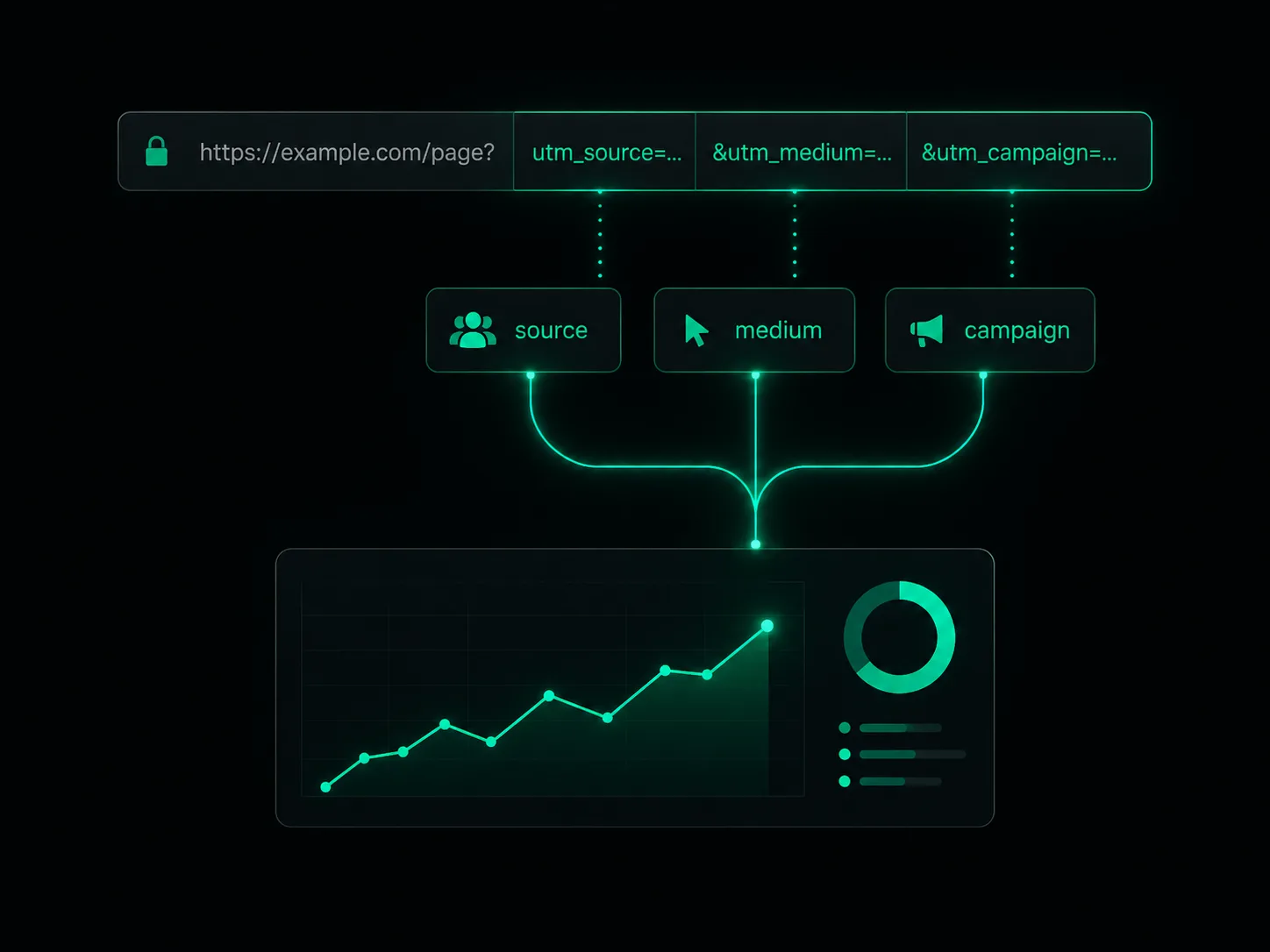
In GA4, go to Reports → Acquisition → Traffic acquisition. You'll see your visitors grouped by channel: Organic Search (Google), Direct (typed your URL or a bookmark), Referral (a link on another site), Organic Social, and Paid. To track which specific post or ad sent the traffic, add UTM tags to your links — GA4 reads them and breaks the data down by source, medium, and campaign.
No. For most people it's a 15-minute job: create the account, create a property, create a web data stream, then paste one snippet of code into your site's head — or paste your Measurement ID into a plugin or settings box if you use WordPress, Wix, Squarespace, or Webflow. The only part that trips people up is forgetting to publish the change. Once it's live, the Realtime report confirms it's working.